
How to Type Phone Symbols (☎ ✆ ☏ 📞 📱) on Any Keyboard – Copy & Paste Guide
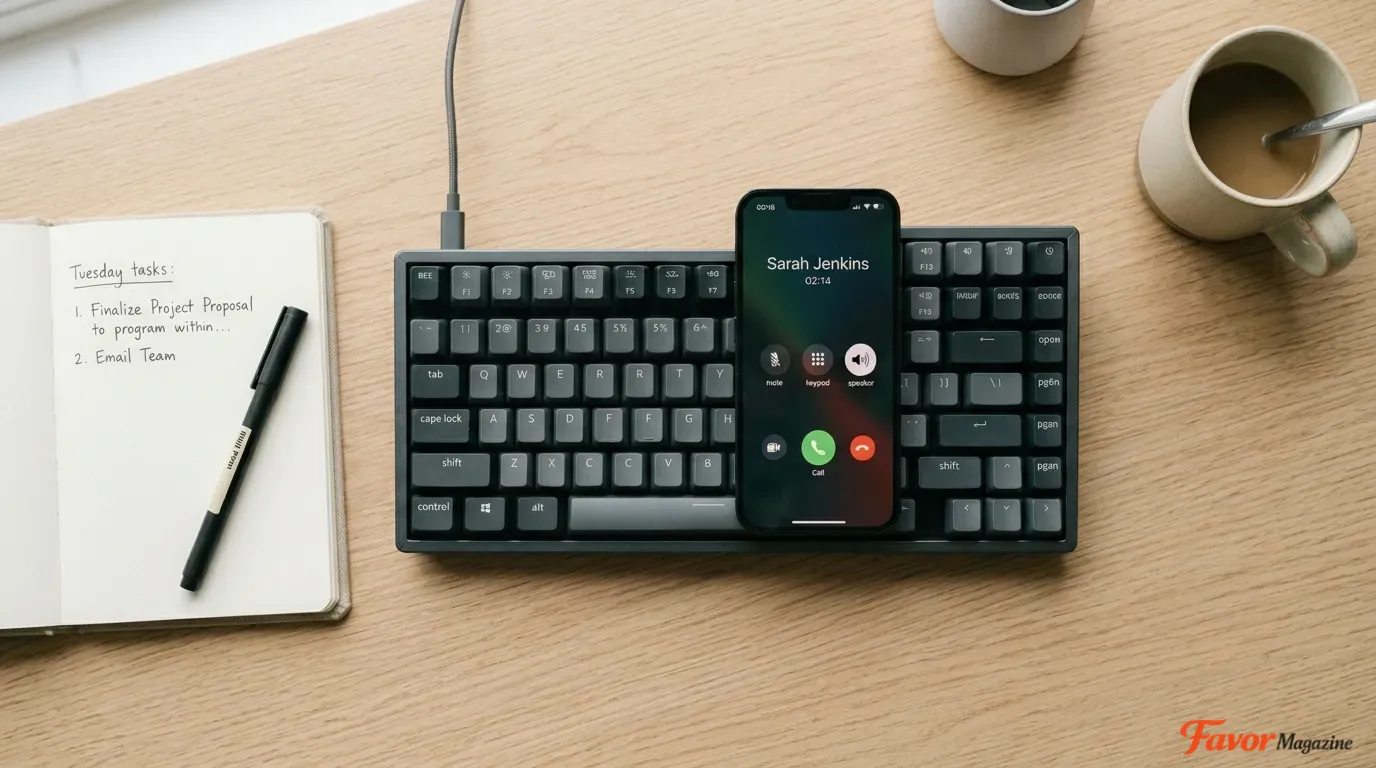
A phone symbol is any character or emoji that represents a telephone, mobile device, signal strength, or call status — for example ☎, ✆, ☏, ℡, 📞, 📱, 📶, and 📵. These symbols are used on resumes, business cards, websites, invoices, and social media bios to make contact details easier to spot at a glance. You can add them in three main ways: copy and paste the symbol directly, type its Unicode or Alt code on Windows or Mac, or pull it from your device’s emoji keyboard. Below, you’ll find every method explained step by step, plus ready-to-copy symbol tables for Word, Excel, HTML, CSS, and mobile devices.
Copy and Paste Phone Symbols
The fastest way to add a phone symbol anywhere — a Word document, a Facebook post, an email signature — is to copy one from the table below and paste it where you need it.
| Symbol | Name | Unicode |
|---|---|---|
| ☎ | Black Telephone | U+260E |
| ☎️ | Telephone (Emoji Style) | U+260E U+FE0F |
| ✆ | Telephone Location Sign | U+2706 |
| ☏ | White Telephone | U+260F |
| ℡ | Telephone Sign | U+2121 |
| 📞 | Telephone Receiver | U+1F4DE |
| 📱 | Mobile Phone | U+1F4F1 |
| 📲 | Mobile Phone with Arrow | U+1F4F2 |
| 📳 | Vibration Mode | U+1F4F3 |
| 📴 | Mobile Phone Off | U+1F4F4 |
| 📶 | Signal / Antenna Bars | U+1F4F6 |
| 📵 | No Mobile Phones | U+1F4F5 |
| 🤳 | Selfie | U+1F933 |
| 🕻 | Telephone Receiver (Left) | U+1F57B |
| 🕽 | Telephone Receiver (Right) | U+1F57D |
| 🕼 | Fax Machine | U+1F57C |
| 🕾 | Personal Phone | U+1F57E |
| 🕿 | Black Touchtone Phone | U+1F57F |
| 🖀 | Big Black Phone | U+1F580 |
| 🖁 | Clamshell Mobile Phone | U+1F581 |
Tip: If a symbol shows up as a small box or question mark, your current font or app doesn’t support that character. Switch to a more common option like ☎, ✆, 📞, or 📱 instead.
Quick Answer: Which Method Should You Use?
Not every method works the same way in every app. Use this table to pick the right approach instantly.
| You want to… | Best method |
|---|---|
| Add ☎ or ✆ in a document | Unicode + Alt + X (Word) or copy-paste |
| Add 📱 or 📞 on a phone | Emoji keyboard |
| Add a phone icon to a webpage | HTML entity code |
| Add a phone icon in CSS | Unicode escape code |
| Type it on Windows without Word | Alt code or Character Map |
| Type it on Mac | Character Viewer (Control + Command + Space) |
| Add signal bars 📶 or do-not-call 📵 | Emoji keyboard or copy-paste |
How to Type Phone Symbols in Microsoft Word
Word supports a built-in Unicode shortcut that converts a code into a symbol instantly.
Method 1: Unicode + Alt + X
- Place your cursor where you want the symbol.
- Type the Unicode value (for example, 260E).
- Press Alt + X.
The code instantly becomes the symbol. For example, typing 260E and pressing Alt + X produces ☎.
| Symbol | Name | Unicode Code |
|---|---|---|
| ✆ | Telephone Location Sign | 2706 |
| ☎ | Black Telephone | 260E |
| ☏ | White Telephone | 260F |
| ℡ | Telephone Sign | 2121 |
| 📞 | Telephone Receiver | 1F4DE |
| 📱 | Mobile Phone | 1F4F1 |
| 📲 | Mobile Phone with Arrow | 1F4F2 |
| 📳 | Vibration Mode | 1F4F3 |
| 📴 | Mobile Phone Off | 1F4F4 |
| 📵 | No Mobile Phones | 1F4F5 |
| 📶 | Antenna Bars | 1F4F6 |
| 🤳 | Selfie | 1F933 |
Method 2: Alt Code (Numeric Keypad)
Word and several Windows apps also accept Alt codes typed on the numeric keypad while holding the Alt key.
- Make sure Num Lock is on and you have a numeric keypad (or use Fn + NumLk on laptops).
- Hold down Alt.
- Type the numeric code on the keypad.
- Release Alt — the symbol appears.
| Symbol | Alt Code |
|---|---|
| ☎ | Alt + 9742 |
| ☏ | Alt + 9743 |
| ✆ | Alt + 9990 |
| ℡ | Alt + 8481 |
Note: Alt codes work best in Word and reliably on Windows; results can vary in browsers and other applications.
Method 3: Insert Symbol Menu
If you don’t want to memorize codes, use Word’s visual symbol picker instead.
- Click where you want the symbol.
- Go to Insert.
- Click Symbol → More Symbols.
- Set the font to Segoe UI Symbol (for text-style symbols like ☎, ✆) or Segoe UI Emoji (for emoji like 📞, 📱).
- Find and select your symbol.
- Click Insert, then Close.
How to Type Phone Symbols on Windows
Windows offers four practical routes, and the right one depends on which symbol you need.
- Copy and paste — works for every symbol on this page, in any app.
- Alt code — fast for text-style symbols in Word and similar apps.
- Character Map — useful for browsing every available font glyph.
- Emoji panel — built for colorful emoji-style icons.
Using Character Map
- Open the Start menu and search for Character Map.
- Choose the Segoe UI Symbol font.
- Search or scroll to locate a phone symbol such as ☎, ✆, ☏, or ℡.
- Select it, click Select, then Copy.
- Paste it into your document.
Using the Emoji Panel
- Click into the text field where you want the symbol.
- Press Windows key + . (period) or Windows key + ; (semicolon).
- Type phone, mobile, call, or signal in the search bar.
- Click the emoji you want to insert it — common choices include 📞, 📱, 📲, 📳, 📴, 📶, 📵, and 🤳.
How to Type Phone Symbols on Mac
On macOS, the Character Viewer is the most reliable tool for inserting any phone symbol or emoji.
- Click where you want the symbol to appear.
- Press Control + Command + Space.
- In the search box, type phone, telephone, mobile, or signal.
- Double-click your chosen symbol or emoji to insert it.
Frequently used options include ☎, ☏, 📞, 📱, 📲, and 📶. If you use a particular symbol often, add it to your Character Viewer favorites for one-click access next time.
How to Add Phone Symbols in Excel
Phone symbols work well in dashboards, contact sheets, and reports inside Excel.
Option 1: Copy and Paste
Copy any symbol from the table at the top of this guide and paste it directly into a cell.
Option 2: Insert Symbol Dialog
- Click the target cell.
- Go to Insert → Symbol.
- Choose Segoe UI Symbol or Segoe UI Emoji.
- Select the phone symbol and click Insert.
Option 3: Combine a Symbol with a Formula
You can prepend a symbol to a phone number stored in another cell using a simple concatenation formula:
="☎ "&A1
If cell A1 contains a phone number, this returns something like ☎ 0245919730. Swap in 📞 for a more emoji-style label.
How to Add Phone Symbols in PowerPoint
Phone icons help contact slides, call-to-action slides, and company profile decks stand out visually.
- Click inside a text box on your slide.
- Go to Insert → Symbol, or use the Windows emoji panel (Windows key + .) or Mac Character Viewer (Control + Command + Space).
- Search for phone and select your symbol.
- Click Insert.
Example slide labels: ☎ Contact Us, 📞 Call Now, 📱 Mobile Support.
How to Add Phone Symbols in Google Docs and Sheets
Google Docs
- Open your document and click where you want the symbol.
- Go to Insert → Special characters.
- Search phone, telephone, or mobile — or sketch the shape directly in the search box.
- Click the matching symbol to insert it.
For emoji-style icons like 📞 and 📱, copy-paste or your device’s emoji keyboard usually works faster than the special characters tool.
Google Sheets
Google Sheets doesn’t include a full special-characters menu, so copy-paste is the simplest route:
- Copy your chosen symbol from this guide.
- Click the target cell in Sheets.
- Press Ctrl + V (Windows) or Command + V (Mac) to paste.
How to Type Phone Emoji on iPhone and Android
Mobile keyboards rely almost entirely on the built-in emoji picker for phone-related icons.
iPhone and iPad
- Tap the text field where you’re typing.
- Switch to the emoji keyboard.
- Search phone.
- Tap your chosen emoji — popular picks include 📞, 📱, 📲, 📳, 📴, 📶, 📵, 🤳, and ☎️.
Android
- Tap the text field.
- Open your emoji keyboard.
- Search phone.
- Tap to insert.
For plain text-style symbols such as ✆, ☎, ☏, and ℡, copy-paste from this guide is generally faster than hunting through a mobile emoji picker.
How to Type Phone Symbols on Chromebook
Chromebooks support three approaches:
- Copy and paste from this page.
- Emoji picker — right-click the text field, choose Emoji, and search phone.
- Unicode input — press Ctrl + Shift + U, type the Unicode value (for example, 260E), then press Enter or Space to produce ☎.
How to Add Phone Symbols in HTML and CSS
HTML Entity Codes
| Symbol | Name | HTML Code |
|---|---|---|
| ✆ | Telephone Location Sign | ✆ |
| ☎ | Black Telephone | ☎ |
| ☏ | White Telephone | ☏ |
| ℡ | Telephone Sign | ℡ |
| 📞 | Telephone Receiver | 📞 |
| 📱 | Mobile Phone | 📱 |
| 📲 | Mobile Phone with Arrow | 📲 |
| 📳 | Vibration Mode | 📳 |
| 📴 | Mobile Phone Off | 📴 |
| 📵 | No Mobile Phones | 📵 |
| 📶 | Antenna Bars | 📶 |
| 🤳 | Selfie | 🤳 |
Example usage:
<p>☎ Call us today</p>
This renders as: ☎ Call us today
CSS Unicode Escapes
You can also inject a symbol through a pseudo-element using the content property:
.contact-phone::before {
  content: "\260E";
}
| Symbol | CSS Unicode |
|---|---|
| ✆ | \2706 |
| ☎ | \260E |
| ☏ | \260F |
| ℡ | \2121 |
For emoji-style icons like 📞 and 📱, pasting the emoji directly into your CSS string is usually simpler than writing an escape code.
Text-Style Symbols vs. Emoji-Style Symbols
Phone characters generally fall into two categories, and choosing the right one affects how professional or casual your content looks.
| Type | Examples | Best Used For |
|---|---|---|
| Text-style | ✆ ☎ ☏ ℡ | Resumes, printed flyers, business cards, formal documents, email signatures |
| Emoji-style | 📞 📱 📲 📳 📴 📶 📵 🤳 | Social media bios, WhatsApp messages, casual websites, mobile-first content |
You may also notice that ☎ sometimes displays as ☎️. The extra version selector (U+FE0F) tells some apps to render the symbol in full color as an emoji, while others keep it as plain black text. Both represent the same telephone symbol — only the rendering style changes.
Where to Use Phone Symbols
| Use Case | Example |
|---|---|
| Resume / CV | ☎ 0245919730 |
| Business website | ☎ Call Us |
| Email signature | ✆ Contact: 0245919730 |
| Instagram / TikTok bio | 📱 DM or WhatsApp |
| Flyer or poster | 📞 Call Now |
| Excel contact sheet | ☎ Office Phone |
For resumes and printed materials, stick with clean text symbols (☎, ✆, ☏) since they render reliably across fonts and printers. For social bios and chat apps, emoji-style icons (📞, 📱, 📶) tend to look more native to the platform.
Accessibility Tip
Don’t rely on a symbol alone to convey meaning — pair it with text. “☎ Call Us” is clearer than a bare ☎, and it also helps screen readers describe the action correctly.
Fixing Common Phone Symbol Problems
Why a Symbol Shows as a Box or Question Mark
This usually means your font, browser, or device doesn’t include that character. It’s most common with rarer glyphs such as 🕻, 🕽, 🕼, 🖁, 🕾, 🕿, and 🖀.
How to fix it:
- Switch to a widely supported symbol like ☎, ✆, ☏, 📞, or 📱.
- Change your font to Segoe UI Symbol, Segoe UI Emoji, or Noto Color Emoji.
- Update your browser, OS, or device software.
- Avoid rare symbols in content that needs to display consistently everywhere.
Why a Symbol Doesn’t Print Correctly
A phone symbol can look fine on screen but fail in print because the printer’s font library doesn’t include it, or your design software substitutes a different character. For flyers, business cards, and T-shirt designs, stick to simple text symbols (☎, ✆, ☏), confirm the font supports them, and consider converting text to outlines before sending the file to print.
Frequently Asked Questions
What is the easiest way to type a phone symbol? Copy and paste is the fastest method for any device or app, since it skips memorizing codes entirely.
How do I type the telephone symbol ☎ in Word? Type 260E, then press Alt + X. You can also use the Alt code shortcut (Alt + 9742 on the numeric keypad).
What’s the difference between ☎ and 📞? ☎ is a text-style symbol that prints as plain black text, while 📞 is a colorful emoji-style icon. Use ☎ for formal documents and 📞 for casual or mobile content.
Why does ☎ sometimes look like ☎️? The emoji version includes a hidden variation selector that tells supporting apps to display it in color instead of plain text.
Can I use phone symbols in a resume? Yes — text-style symbols like ☎, ✆, and ☏ work well in resumes because they print cleanly and look professional next to contact details.
How do I add a phone icon to my website without an image file? Use an HTML entity code (like ☎) or a CSS Unicode escape (\260E) so the icon renders as text instead of a separate image, keeping your page lightweight.
Why won’t my phone symbol show up correctly? The font or device you’re using likely doesn’t support that specific character. Switch to a more common symbol or update the font to one with full Unicode coverage, such as Segoe UI Symbol.


![Brackets and Braces Symbols — How to Type ( ) [ ] { } on Any Device](https://favormagazine.co.uk/wp-content/uploads/2026/06/Brackets-and-Braces-Symbols-—-How-to-Type-on-Any-Device-768x429.webp)