I Symbols ⓘ ℹ 𝐢 𝓲 𝕚 𝔦 — Copy Paste, Type Information Symbol & Fancy i Text
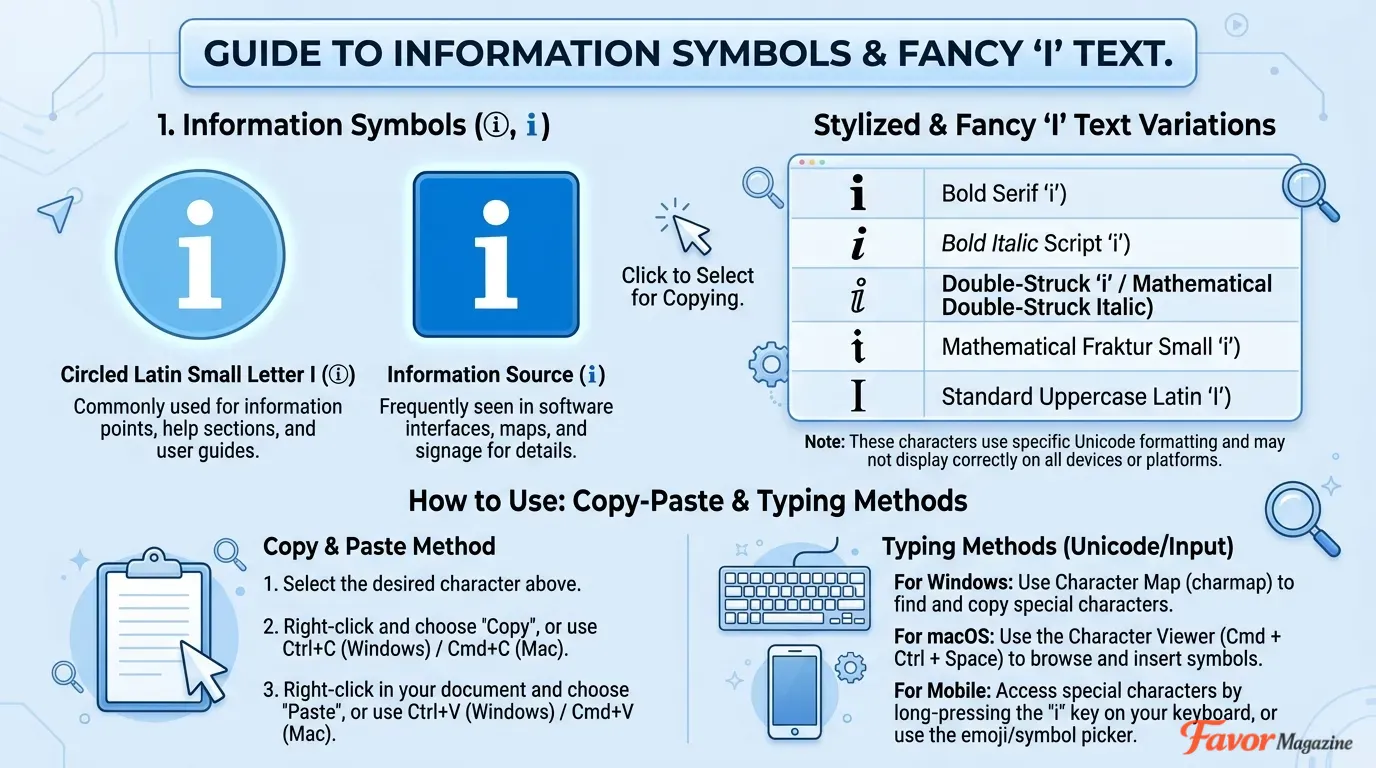
I symbols are Unicode characters based on the letter i — covering the information symbol ℹ, the circled i symbol ⓘ, plain letters i and I, and decorative fancy i text like 𝐢, 𝓲, 𝕚, and 𝔦. If you need an i symbol right now, copy one from the tables below and paste it anywhere. These i symbols are widely used for information notes, help icons, tooltips, dashboards, social media bios, usernames, web design, and decorative text styling. The information symbol ℹ signals extra details or help content, while the circled i symbol ⓘ works as a clean icon-style marker in forms and websites. Fancy i symbols like 𝓲 and 𝕚 are popular for aesthetic social media text and stylized usernames. This complete guide covers every i symbol type, every Unicode value, every HTML code, every typing method on Windows, Mac, Word, Excel, Google Docs, iPhone, Android, CSS, JavaScript, Python, and more — all in one place.
All I Symbols — Copy and Paste Tables
Information and Info Icon Symbols
| Symbol | Name | Unicode | Best Use |
|---|---|---|---|
| ℹ | Information Source Symbol | U+2139 | Notes, help, tips, tooltips |
| ⓘ | Circled Latin Small i | U+24D8 | Info icon, forms, dashboards |
| 🛈 | Circled Information Source | U+1F6C8 | Information icon (emoji style) |
| Ⓘ | Circled Capital I | U+24BE | Capital icon, formal designs |
| 🅘 | Squared Capital I | U+1F158 | Boxed i design style |
| 🄸 | Negative Squared I | U+1F138 | Inverted box style |
| ⒤ | Parenthesized Small i | U+24A4 | List markers, note labels |
Fancy i Text Symbols (Lowercase)
| Symbol | Name | Unicode | Style |
|---|---|---|---|
| 𝐢 | Mathematical Bold Small i | U+1D422 | Bold |
| 𝓲 | Mathematical Bold Script i | U+1D4F2 | Cursive / Script |
| 𝕚 | Mathematical Double-Struck i | U+1D55A | Double-struck |
| 𝔦 | Mathematical Fraktur Small i | U+1D526 | Gothic / Fraktur |
| 𝖎 | Bold Fraktur Small i | U+1D586 | Bold Gothic |
| 𝘪 | Sans-Serif Italic i | — | Italic sans-serif |
| 𝙞 | Monospace Small i | U+1D692 | Monospace |
Fancy I Text Symbols (Uppercase)
| Symbol | Name | Unicode | Style |
|---|---|---|---|
| 𝐈 | Mathematical Bold Capital I | U+1D408 | Bold |
| 𝐼 | Italic Capital I | U+1D43C | Italic |
| ℐ | Script Capital I | U+2110 | Script/Cursive |
| 𝕀 | Double-Struck Capital I | U+1D540 | Double-struck |
| 𝕴 | Bold Fraktur Capital I | U+1D574 | Bold Gothic |
| ℑ | Blackletter Capital I | U+2111 | Blackletter |
| I | Fullwidth Capital I | U+FF29 | Fullwidth |
Special and Accented i Letters
| Symbol | Name | Unicode |
|---|---|---|
| ɪ | Small Capital I | U+026A |
| î | Small i With Circumflex | U+00EE |
| Î | Capital I With Circumflex | U+00CE |
| ï | Small i With Diaeresis | U+00EF |
| Ï | Capital I With Diaeresis | U+00CF |
| ì | Small i With Grave | U+00EC |
| í | Small i With Acute | U+00ED |
| ĭ | Small i With Breve | U+012D |
| ị | Small i With Dot Below | U+1ECB |
| ї | Cyrillic Small Yi | U+0457 |
| i | Plain Lowercase i | U+0069 |
| I | Plain Capital I | U+0049 |
HTML and Unicode Reference Codes
| Symbol | HTML Decimal | HTML Hex | Word Unicode |
|---|---|---|---|
| ℹ | ℹ | ℹ | 2139 + Alt+X |
| ⓘ | ⓘ | ⓘ | 24D8 + Alt+X |
| ⒤ | ⒤ | ⒤ | 24A4 + Alt+X |
| Ⓘ | Ⓘ | Ⓘ | 24BE + Alt+X |
| i | i | i | 0069 + Alt+X |
| I | I | I | 0049 + Alt+X |
Quick Reference — I Symbols at a Glance
| Symbol | Name | Unicode | Word Shortcut |
|---|---|---|---|
| ℹ | Information Source | U+2139 | 2139 + Alt+X |
| ⓘ | Circled Small i | U+24D8 | 24D8 + Alt+X |
| 🛈 | Circled Info Source | U+1F6C8 | Copy-paste |
| Ⓘ | Circled Capital I | U+24BE | 24BE + Alt+X |
| 𝐢 | Bold Small i | U+1D422 | Copy-paste |
| 𝓲 | Script Small i | U+1D4F2 | Copy-paste |
| 𝕚 | Double-Struck i | U+1D55A | Copy-paste |
| 𝔦 | Fraktur i | U+1D526 | Copy-paste |
| ɪ | Small Capital I | U+026A | Copy-paste |
| i | Plain i | U+0069 | Keyboard |
| I | Plain Capital I | U+0049 | Keyboard |
What Are I Symbols?
I symbols are Unicode text characters based on the letter i or I. They span three main categories: information icons, fancy styled letters, and accented or special-use variants.
The most searched i symbols are:
- ℹ — the standard information symbol used in apps, help docs, and tooltips
- ⓘ — the circled i icon used in forms, dashboards, and UI design
- 𝐢 𝓲 𝕚 𝔦 — fancy i letter styles used in social media bios and aesthetic text
- î ï ì í — accented i letters used in French, Spanish, and other languages
What Is the Information Symbol ℹ?
The information symbol ℹ (Unicode U+2139) is a text character that represents information, help, notes, or additional details. It is widely recognized across apps, operating systems, websites, and printed materials as the universal icon for “more information available here.”
Common uses of ℹ:
- Websites — next to form fields or feature descriptions
- Apps and dashboards — labeling help tooltips and info panels
- Documents — marking tips, notes, and important notices
- WordPress posts — inside callout or info boxes
- Canva designs — as an icon in infographic cards
- Presentations — labeling supplemental slides or footnotes
- Product labels — pointing to ingredient or usage details
Example usage in text:
ℹ Tip: Copy the symbol above and paste it directly into your document. ℹ Note: This field is required before submitting. ℹ More details are available in the appendix.
What Is the Circled i Symbol ⓘ?
The circled i symbol ⓘ (Unicode U+24D8) is a lowercase i enclosed in a circle. It functions as an icon-style information marker — cleaner and more visually rounded than ℹ — making it popular in UI design, data tables, forms, and instructional content.
Difference between ℹ and ⓘ:
| Feature | ℹ Information Symbol | ⓘ Circled i Symbol |
|---|---|---|
| Unicode | U+2139 | U+24D8 |
| Style | Serif information mark | Circled letter icon |
| Size | Standard | Compact circle |
| Best for | Help notes, tips, labels | UI icons, forms, tables |
| Word shortcut | 2139 + Alt+X | 24D8 + Alt+X |
| HTML decimal | ℹ | ⓘ |
Use ℹ for standard information notes in documents. Use ⓘ when you want a cleaner, icon-like circled marker. Use plain i as a fallback when Unicode symbols don’t render.
Information Symbol vs Circled i vs Plain i — Full Comparison
| Symbol | Name | Visual Style | Recommended Context |
|---|---|---|---|
| ℹ | Information Source | Bold serif i-mark | Documents, notes, help text |
| ⓘ | Circled Small i | Circle with i inside | UI design, dashboards, forms |
| 🛈 | Circled Info Source | Emoji-style circle | Apps, mobile UI |
| ⒤ | Parenthesized i | i in parentheses | List labels, reference notes |
| i | Plain lowercase i | Standard letter | Fallback, simple text |
| I | Plain capital I | Standard capital | Heading, abbreviation |
Best I Symbol to Use — Decision Table
| Your Need | Best Symbol |
|---|---|
| Information note or tip | ℹ |
| Info icon in forms or UI | ⓘ |
| Bold decorative i | 𝐢 |
| Cursive / script i | 𝓲 |
| Double-struck i for math | 𝕚 |
| Gothic / Fraktur aesthetic i | 𝔦 |
| Social media bio decoration | 𝓲, 𝕚, 𝔦, 𝙞 |
| WordPress callout box | ℹ or ⓘ |
| Canva design element | ℹ, ⓘ, 𝐢, 𝓲 |
| HTML information label | ℹ = ℹ |
| CSS info icon | \2139 = ℹ |
| Plain text fallback | i or Info: |
How to Type the Plain i on Keyboard
The simplest i symbol is the standard lowercase letter i, available directly on every keyboard.
- Lowercase i: Press the I key
- Uppercase I: Hold Shift + press I
This is the right choice when special Unicode symbols are not supported by the platform or font being used.
How to Type I Symbols in Microsoft Word
Method 1 — Unicode + Alt+X (Fastest Method)
Microsoft Word supports Unicode conversion: type the code, then press Alt + X to transform it into the symbol.
Steps:
- Click where you want the symbol
- Type the Unicode value (example:
2139) - Press Alt + X
- Word converts it to ℹ
Unicode Shortcuts for Word:
| Symbol | Type This | Then Press | Result |
|---|---|---|---|
| ℹ | 2139 | Alt + X | Information symbol |
| ⓘ | 24D8 | Alt + X | Circled i |
| ⒤ | 24A4 | Alt + X | Parenthesized i |
| Ⓘ | 24BE | Alt + X | Circled capital I |
| i | 0069 | Alt + X | Plain i |
| I | 0049 | Alt + X | Plain capital I |
Method 2 — Insert Symbol Menu in Word
- Open your Word document and click the insertion point
- Go to Insert → Symbol → More Symbols
- In the character code box, type
2139for ℹ or24D8for ⓘ - Select the symbol and click Insert, then Close
For fancy i symbols like 𝐢 𝓲 𝕚 𝔦, copy-paste from the tables above since they reside in the Mathematical Alphanumeric Symbols Unicode block and are easier to access by copy-paste than by manual code entry.
How to Type I Symbols in Excel
Excel supports i symbols inside cells, headers, data validation messages, and dashboard labels.
Three methods:
- Copy-paste — copy from the tables above, paste with Ctrl+V into the cell
- Insert Symbol — go to Insert → Symbol → select Segoe UI Symbol font → find ℹ or ⓘ
- Formula — use
=UNICHAR(8505)in a cell to produce ℹ
Useful applications in Excel:
| Use Case | Recommended Symbol |
|---|---|
| Dashboard info note | ℹ |
| Formula explanation cell | ⓘ |
| Warning label | ℹ or plain “Note:” |
| Report header annotation | ℹ |
| Auto-calculated column marker | ⓘ |
If the symbol renders as a box in older Excel versions, use the plain text fallback: Info: or Note:
How to Type I Symbols in PowerPoint
PowerPoint handles i symbols well in callout boxes, slide notes, and contact slides.
Insert steps:
- Click inside a text box on your slide
- Copy the symbol from the tables above and paste with Ctrl+V
- Or go to Insert → Symbol, choose Segoe UI Symbol, and search by character code
Practical slide uses:
- ℹ Key Point — highlights an important takeaway
- ⓘ See appendix — directs to supporting slides
- ℹ Source: — credits data references
- Info: — plain fallback for compatibility
How to Type I Symbols in Google Docs
Option 1 — Special Characters Menu
- Open Google Docs
- Go to Insert → Special characters
- Search for:
information,circled i, orcircled latin - Click the symbol to insert it
Option 2 — Copy and Paste
Copy ℹ or ⓘ from the tables above and paste with Ctrl+V (Windows) or Command+V (Mac).
Option 3 — Bullet Callout Style
ℹ Tip: This is an informational note for your readers.
ⓘ Note: Double-check values before submitting.
How to Type I Symbols in Google Sheets
Google Sheets does not have a built-in symbol picker, so copy-paste is the best approach.
Alternative — UNICHAR formula:
=UNICHAR(8505)   → ℹ
=UNICHAR(9432)   → ⓘ
Paste the result into any cell or reference it in formulas for dynamic dashboard labels.
How to Type the Information Symbol on Windows
Using Copy-Paste
Copy ℹ from this guide, then press Ctrl + V to paste anywhere.
Using Windows Character Map
- Press Start and search for Character Map
- Open it and select font: Segoe UI Symbol
- Search for “information” or browse to U+2139
- Click Select, then Copy, then paste
Using Windows Emoji Panel
- Press Windows key + .
- Switch to the Symbols tab
- Search for information or circle i
- Click to insert
Using Microsoft Word Unicode
Type 2139 → press Alt + X → result: ℹ
How to Type the Information Symbol on Mac
Option 1 — Copy and Paste
Copy ℹ from this guide → paste with Command + V
Option 2 — Character Viewer
- Press Control + Command + Space to open Character Viewer
- Search for:
informationorcircled i - Double-click the symbol to insert at cursor position
Option 3 — Unicode Hex Input (if enabled)
- Enable Unicode Hex Input under System Settings → Keyboard → Input Sources
- Hold Option and type 2139
- Result: ℹ
How to Type I Symbols on Chromebook
| Symbol | Steps |
|---|---|
| ℹ | Press Ctrl+Shift+U → type 2139 → press Enter |
| ⓘ | Press Ctrl+Shift+U → type 24d8 → press Enter |
| Any other | Copy from tables above → paste with Ctrl+V |
How to Type I Symbols on iPhone and iPad
The iPhone keyboard does not include ℹ or ⓘ by default.
Best method: Copy from the tables above and paste into any app.
Create a Text Replacement Shortcut on iPhone
Set up a shortcut so typing a keyword auto-suggests ℹ:
- Copy ℹ from this guide
- Open Settings → General → Keyboard → Text Replacement
- Tap +
- In Phrase, paste ℹ
- In Shortcut, type
infoicon - Tap Save
Now typing infoicon suggests ℹ in any app.
Repeat the same process with ⓘ using the shortcut circleinfo.
How to Type I Symbols on Android
For ℹ and ⓘ: Copy from the tables above and paste into any Android app.
Via emoji keyboard:
- Open the emoji keyboard
- Search for:
information,circle, orinfo - Tap to insert
Via personal dictionary (Gboard):
- Open Gboard settings → Dictionary → Personal dictionary
- Add ℹ as a word with shortcut
infoicon - Now typing
infoiconsuggests ℹ in autocomplete
I Symbols in HTML — Complete Entity Code Reference
Use these HTML codes to display i symbols on any web page. Always include <meta charset="UTF-8"> in your HTML head.
HTML Entity Codes Table
| Symbol | Name | HTML Named | HTML Decimal | HTML Hex |
|---|---|---|---|---|
| ℹ | Information Symbol | ∞* | ℹ | ℹ |
| ⓘ | Circled Small i | — | ⓘ | ⓘ |
| ⒤ | Parenthesized i | — | ⒤ | ⒤ |
| Ⓘ | Circled Capital I | — | Ⓘ | Ⓘ |
| i | Plain i | — | i | i |
| I | Plain I | — | I | I |
*Use
ℹorℹfor reliable cross-browser rendering of ℹ.
HTML usage examples:
html
<!-- Information note label -->
<p>ℹ This field is required before you can proceed.</p>
<!-- Circled i info note -->
<p>ⓘ This column is automatically calculated.</p>
<!-- Info tooltip trigger -->
<span title="More details available">ℹ</span>
<!-- Email obfuscation with @ -->
<a href="mailto:support@example.com">Contact Us ℹ</a>I Symbols in CSS — Content Property Reference
Use Unicode values in the CSS content property to insert i symbols via pseudo-elements.
css
/* Standard information symbol before a note */
.info-note::before {
  content: "\2139";
  margin-right: 6px;
  color: #0066cc;
}

/* Circled i before a tooltip trigger */
.tooltip-trigger::before {
  content: "\24D8";
  font-size: 0.9em;
  margin-right: 4px;
}

/* Direct character (more readable) */
.help-text::before {
  content: "ℹ";
  padding-right: 5px;
}

/* Info box styling with symbol */
.callout-info {
  border-left: 4px solid #0066cc;
  padding: 12px 16px;
}
.callout-info::before {
  content: "\2139  ";
  font-weight: bold;
  color: #0066cc;
}
CSS Unicode Value Reference:
| Symbol | CSS Value |
|---|---|
| ℹ | \2139 |
| ⓘ | \24D8 |
| ⒤ | \24A4 |
| Ⓘ | \24BE |
| i | \0069 |
I Symbols in JavaScript
Use i symbols directly in JS strings or via Unicode escapes.
javascript
// Direct character in string
const infoLabel = "ℹ More information";
const circledI  = "ⓘ Click for details";

// Unicode escape (U+2139)
const infoIcon = "\u2139";

// For symbols above U+FFFF (emoji-style)
const infoEmoji = "\u{1F6C8}";  // 🛈

// Dynamic DOM insertion
document.querySelector(".note").textContent = "\u2139 This is a note.";

// Tooltip attribute
element.setAttribute("title", "\u2139 More details available here.");

// Alert dialog
alert("\u2139 Please fill in all required fields.");
I Symbols in Python
python
# Direct string usage
message = "ℹ More information"
print(message)

# Unicode escape
info_symbol = "\u2139"
print(info_symbol)          # ℹ

# Circled i
circled_i = "\u24D8"
print(circled_i)            # ⓘ

# Emoji-style info source
info_emoji = "\U0001F6C8"
print(info_emoji)           # 🛈

# Combined label
print(f"{info_symbol} Note: This value is auto-calculated.")
I Symbols in WordPress
WordPress supports all Unicode i symbols in the Block Editor (Gutenberg), Classic Editor, and page builders.
Recommended usage by context:
| Location | Best Symbol | Example |
|---|---|---|
| Callout / info box | ℹ | ℹ Tip: Save your progress regularly |
| Table note | ⓘ | ⓘ Values update every 24 hours |
| Heading label | ℹ | ## ℹ Before You Start |
| Button label | ℹ | [ℹ Learn More] |
| List note | ⓘ | ⓘ Step 3 requires admin access |
| Footer note | ℹ | ℹ Last updated: June 2026 |
HTML block in WordPress:
html
<div class="wp-block-info">
ℹ <strong>Note:</strong> This plugin requires WordPress 6.0 or higher.
</div>I Symbols in Canva
Canva supports all copy-pasted Unicode i symbols in its text editor.
Steps:
- Copy ℹ, ⓘ, or any fancy i symbol from the tables above
- Open your Canva design
- Click an existing text box or add a new one
- Paste with Ctrl+V (Windows) or Command+V (Mac)
- Adjust font, size, and color as needed
Canva use cases:
- Infographic info labels → ℹ
- Icon-style note markers → ⓘ
- Social media bio decorations → 𝓲, 𝕚, 𝔦
- Educational slide callouts → ℹ
- Business card labels → ℹ or ⓘ
- Poster annotations → ℹ
If a symbol appears as a box in Canva, switch to a Unicode-compatible font such as Noto Sans, Lato, or Open Sans.
I Symbols on Social Media
I symbols work across most major social platforms in bios, captions, comments, and usernames.
Popular platform-tested combinations:
| Platform | Recommended Style | Example |
|---|---|---|
| Instagram bio | ℹ, ⓘ, 𝓲 | 𝓲nspire • ℹ Link in bio |
| TikTok bio | ℹ, 𝕚 | 𝕚 tutorials • ℹ DM for info |
| Twitter/X | ℹ, ⓘ | ⓘ See pinned tweet for details |
| ℹ | ℹ Available for freelance projects | |
| Discord username | 𝔦, 𝓲 | 𝔦ronforge, 𝓲vy |
| WhatsApp status | ℹ | ℹ Busy until Friday |
| 𝓲, 𝕚 | Decorative caption style |
Test symbols before publishing — some older app versions may render ℹ as a box. Use ⓘ or plain i as a reliable fallback.
Fancy i Symbols vs Real Text — What’s the Difference?
Fancy i symbols like 𝐢, 𝓲, 𝕚, and 𝔦 are not the same as the regular letter i. They are Unicode characters from the Mathematical Alphanumeric Symbols block (U+1D400–U+1D7FF), designed originally for mathematical typesetting but widely adopted for decorative text styling online.
Important differences:
| Feature | Plain i | Fancy 𝓲 |
|---|---|---|
| Searchable | Yes | No |
| Screen reader readable | Yes | No |
| Accessibility friendly | Yes | No |
| Works everywhere | Yes | Mostly |
| Visual styling | None | Cursive, bold, gothic etc. |
| Good for | Documents, code | Bios, usernames, captions |
Never use fancy i symbols in important document content, headings meant to be indexed, or accessibility-sensitive UI. Use them only for decoration in bios, usernames, and captions.
Common Uses of I Symbols by Context
Help and Information Notes
ℹ Tip: You can skip this step if you already have an account.
ⓘ Note: This field accepts numbers only.
ℹ More details are available at the link below.
Dashboard and Spreadsheet Labels
ⓘ  Revenue column — auto-calculated from Columns B and C
ℹ  Last synced: June 18, 2026
ⓘ  Read-only row — do not edit directly
Website and App Tooltips
html
<button class="info-btn" title="ℹ Click to learn more about this feature">ⓘ</button>Social Media Bios
𝓲nspiring content • ℹ New post every Tuesday
𝕚deals & lifestyle • ⓘ Collab: DM me
Presentations and Training Slides
ℹ Key Concept: Always back up data before migration.
ⓘ Source: Internal Q1 Report, 2026
Why Do I Symbols Show as Boxes?
A square □ or question mark ? in place of ℹ or ⓘ means the device, font, or platform doesn’t support that Unicode character.
Troubleshooting Table
| Problem | Solution |
|---|---|
| Font doesn’t include the character | Switch to Segoe UI Symbol, Noto Sans, or Arial Unicode MS |
| App uses limited Unicode support | Use the plain text fallback: Info: |
| Old operating system | Update OS or use a web-based editor |
| WordPress theme font gap | Add Noto Sans via Google Fonts in theme settings |
| HTML page missing charset | Add <meta charset="UTF-8"> to <head> |
| Canva font doesn’t support it | Switch to Lato, Open Sans, or Noto Sans in Canva |
Common Mistakes with I Symbols
- Using fancy i in body text — 𝓲 and 𝔦 are decorative only; body text should always use plain i for readability and accessibility
- Using plain i when an icon is needed — if your context calls for a visual info marker, use ℹ or ⓘ, not just i
- Overusing info icons — one ℹ per section is enough; too many create visual noise
- Ignoring font compatibility — always test that ℹ and ⓘ render correctly before publishing
- Confusing fancy i text with actual italic formatting — 𝘪 looks italic but isn’t; use HTML/CSS
<em>orfont-style: italicfor actual semantic italics
Key Takeaways
- Information symbol ℹ = Unicode U+2139, type with 2139 + Alt+X in Word
- Circled i symbol ⓘ = Unicode U+24D8, type with 24D8 + Alt+X in Word
- HTML code for ℹ is
ℹand CSS value is\2139 - Fancy i symbols 𝐢 𝓲 𝕚 𝔦 are decorative only — not searchable or accessible
- Copy-paste is the fastest method for all platforms except Microsoft Word
Frequently Asked Questions
What are I symbols?
I symbols are Unicode characters based on the letter i or I, including the information symbol ℹ, circled i ⓘ, plain letters, fancy styled variants like 𝐢 𝓲 𝕚 𝔦, and accented forms like î ï ì í. Each serves a different purpose from information marking to decorative text.
What is the information symbol ℹ?
The information symbol ℹ (Unicode U+2139) is a universally recognized character indicating that additional information, help, or details are available. It is used in apps, websites, documents, dashboards, and forms as a visual information marker.
What is the circled i symbol ⓘ?
The circled i symbol ⓘ (Unicode U+24D8) is a lowercase i enclosed in a circle. It functions as an icon-style information marker, commonly used in UI design, forms, tables, and callout boxes when a rounder, more compact icon appearance is preferred.
How do I type the information symbol in Word?
In Microsoft Word, type 2139 and then press Alt + X. Word converts the code into the information symbol ℹ. You can also go to Insert → Symbol → More Symbols and enter character code 2139.
What is the Unicode for the information symbol?
The information symbol ℹ has Unicode value U+2139. In HTML use ℹ or ℹ. In CSS use \2139. In JavaScript use \u2139. In Python use \u2139.
What is the HTML code for the information symbol?
The HTML decimal code for ℹ is ℹ. The HTML hex code is ℹ. Both render the information symbol in any web page using UTF-8 encoding.
Is ℹ the same as ⓘ?
No. They are two different Unicode characters. ℹ (U+2139) is the Information Source symbol with a serif i-mark style. ⓘ (U+24D8) is the Circled Latin Small Letter i with a circle-and-letter style. Use ℹ for standard information notes and ⓘ for icon-style circle markers.
Are fancy i symbols like 𝓲 and 𝕚 real letters?
No. Fancy i symbols like 𝐢, 𝓲, 𝕚, and 𝔦 are Unicode characters from the Mathematical Alphanumeric Symbols block, originally designed for math typesetting. They look like styled letters but are not real text characters — they are not searchable, not readable by screen readers, and not suitable for important body content.
Which information symbol is best for websites?
For professional websites, use ℹ (U+2139) via its HTML code ℹ or directly in UTF-8 encoded pages. For icon-style UI elements, use ⓘ (U+24D8). Both are widely supported across modern browsers and operating systems.
Which I symbol is best for social media bios?
For social media bios and aesthetic text styling, 𝓲, 𝕚, and 𝔦 are the most popular fancy i choices. For information markers in captions or posts, ℹ and ⓘ work well on Instagram, TikTok, Twitter/X, LinkedIn, and Discord.
Why does the information symbol appear as a box?
A box or square □ appears when the font or operating system doesn’t support that Unicode character. Fix it by switching to a Unicode-compatible font (Segoe UI Symbol, Noto Sans, Arial Unicode MS) or use the plain text fallback Info: instead.
Can I use I symbols in WordPress?
Yes. All i symbols — ℹ, ⓘ, 𝐢, 𝓲, 𝕚, 𝔦 — work in WordPress posts, pages, and widgets. Copy-paste them directly into the Block Editor or use their HTML codes in HTML blocks. Make sure your theme uses a Unicode-compatible font.
Conclusion
I symbols cover a wide range of Unicode characters — from the universally recognized information symbol ℹ and circled i ⓘ, to decorative fancy i text like 𝓲, 𝕚, and 𝔦, to accented variants like î and ï. For information notes and help labels in documents, websites, and dashboards, ℹ and ⓘ are the best choices. For social media bios and aesthetic text styling, fancy i symbols provide a range of visual styles. For web development, HTML code ℹ and CSS value \2139 deliver reliable cross-platform rendering of ℹ. In Microsoft Word, the Unicode shortcut 2139 + Alt+X is the fastest typing method. When in doubt — or when symbols appear as boxes — copy-paste from this guide or fall back to the plain text alternative Info: which works universally across all fonts and platforms.