Dot Symbols • ● ◦ ⦿ ⊙ — Complete Guide to Copy, Type & Use on Any Device
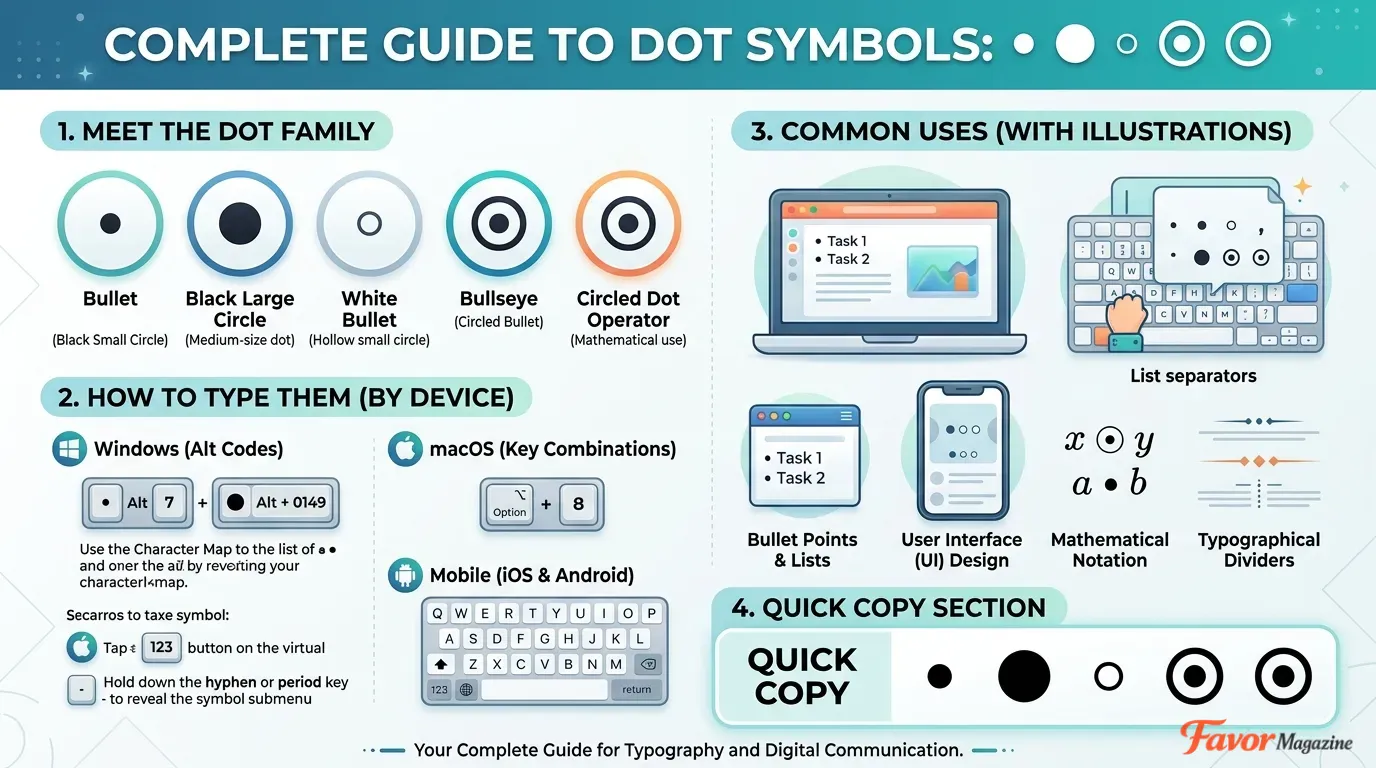
Dot symbols are small round characters — like •, ●, ◦, ⦿, and ⊙ — used every day in bullet lists, social media bios, usernames, math equations, HTML code, and design layouts. If you need a dot symbol fast, just copy one from the table below. If you want to type dot symbols on Windows, Mac, Microsoft Word, Excel, Google Docs, iPhone, or Android, this guide covers every method clearly with exact steps. Whether you’re looking for a simple bullet point •, a decorative circled dot ⊙, a hollow circle ○, or a colored dot emoji 🔴, you’ll find the right symbol and the right way to insert it here. This is the only dot symbol reference you’ll need — covering Unicode values, Alt codes, keyboard shortcuts, HTML entity codes, CSS content values, and copy-paste tables for all major dot symbol types.
Copy and Paste Dot Symbols — Full Table
Use the tables below to instantly copy any dot symbol. Click the symbol, then paste it anywhere.
Common Dot Symbols
| Symbol | Name | Unicode |
|---|---|---|
| • | Bullet | U+2022 |
| · | Middle Dot | U+00B7 |
| ‧ | Hyphenation Point | U+2027 |
| ∙ | Bullet Operator | U+2219 |
| ⸱ | Word Separator Dot | U+2E31 |
| ⸰ | Ring Point | U+2E30 |
Circle and Hollow Dot Symbols
| Symbol | Name | Unicode |
|---|---|---|
| ● | Black Circle | U+25CF |
| ○ | White Circle | U+25CB |
| ◦ | White Bullet | U+25E6 |
| ◌ | Dotted Circle | U+25CC |
| ◎ | Bullseye | U+25CE |
| ◉ | Fisheye | U+25C9 |
| ◯ | Large Circle | U+25EF |
| ⬤ | Black Large Circle | U+2B24 |
| ⚬ | Small White Circle | U+26AC |
Decorative Dot Symbols
| Symbol | Name | Unicode |
|---|---|---|
| ⦾ | Circled White Bullet | U+29BE |
| ⦿ | Circled Bullet | U+29BF |
| ⊙ | Circled Dot Operator | U+2299 |
| ⊚ | Circled Ring Operator | U+229A |
| ⊛ | Circled Asterisk | U+229B |
| ◍ | Circle with Fill | U+25CD |
| ◐ | Half Black Circle (Left) | U+25D0 |
| ◑ | Half Black Circle (Right) | U+25D1 |
| ◒ | Lower Half Black Circle | U+25D2 |
| ◓ | Upper Half Black Circle | U+25D3 |
| ◘ | Inverse Bullet | U+25D8 |
| ◙ | Inverse White Circle | U+25D9 |
Math and Technical Dot Symbols
| Symbol | Name | Unicode |
|---|---|---|
| ∴ | Therefore | U+2234 |
| ∵ | Because | U+2235 |
| ∶ | Ratio | U+2236 |
| ∷ | Proportion | U+2237 |
| ⦂ | Z Notation Colon | U+2982 |
Colored Dot Emoji
| Symbol | Name | Unicode |
|---|---|---|
| ⚫ | Black Circle Emoji | U+26AB |
| ⚪ | White Circle Emoji | U+26AA |
| 🔴 | Red Circle Emoji | U+1F534 |
| 🔵 | Blue Circle Emoji | U+1F535 |
| 🟢 | Green Circle Emoji | U+1F7E2 |
| 🟡 | Yellow Circle Emoji | U+1F7E1 |
| 🟠 | Orange Circle Emoji | U+1F7E0 |
| 🟣 | Purple Circle Emoji | U+1F7E3 |
| 🟤 | Brown Circle Emoji | U+1F7E4 |
| ⭕ | Heavy Large Circle | U+2B55 |
Dot Symbol Names and What They Mean
Before choosing which dot symbol to use, it helps to understand what each one is called and where it belongs.
Common Dot Symbols and Their Uses
| Symbol | Name | Common Use |
|---|---|---|
| • | Bullet Point | Lists, documents, social media bios |
| · | Middle Dot | Names (e.g., Marc·Aureli), chemistry, language |
| ∙ | Bullet Operator | Math multiplication, logic notation |
| ● | Black Circle | Decorative bullets, design, status indicators |
| ○ | White Circle | Open status, design, toggle states |
| ◦ | White Bullet | Nested list sub-items |
| ⊙ | Circled Dot Operator | Astronomy (sun symbol), math, circuit diagrams |
| ∴ | Therefore | Logic proofs, math |
| ∵ | Because | Logic proofs, math |
Bullet Dot vs Middle Dot vs Black Circle — What’s the Difference?
These three symbols look similar but serve different purposes.
| Feature | Bullet • | Middle Dot · | Black Circle ● |
|---|---|---|---|
| Unicode | U+2022 | U+00B7 | U+25CF |
| Size | Small | Tiny, centered | Large |
| Use | List items | Names, chemistry | Design, emphasis |
| Alt Code (Windows) | Alt + 0149 | Alt + 0183 | No simple Alt code |
| Mac Shortcut | None built-in | Option + Shift + 9 | None built-in |
- Bullet • is the standard list item marker used in word processors, presentations, and social media.
- Middle dot · sits at mid-height vertically — used in Catalan writing (l·l), chemistry formulas, and decorative name separators.
- Black circle ● is larger and bolder — ideal for status indicators, visual design elements, and custom bullet styles.
- White bullet ◦ is the hollow version of the bullet — commonly used for sub-lists or nested list items.
How to Type Dot Symbols on Windows
Method 1 — Type the Bullet Symbol • Using Alt Code
The bullet symbol • has a universal Windows Alt code.
Steps:
- Click where you want to insert the dot symbol
- Turn on Num Lock
- Hold the Alt key
- Type 0149 on the numeric keypad
- Release Alt
Result: •
Important: Use the numeric keypad only — the top number row does not work for Alt codes.
Method 2 — Type the Middle Dot · Using Alt Code
Steps:
- Click where you want the middle dot
- Turn on Num Lock
- Hold Alt
- Type 0183 on the numeric keypad
- Release Alt
Result: ·
Method 3 — Windows Alt Code Reference Table
| Symbol | Name | Windows Alt Code |
|---|---|---|
| • | Bullet | Alt + 0149 |
| · | Middle Dot | Alt + 0183 |
| ○ | White Circle | Alt + 9 (some apps) |
| ◘ | Inverse Bullet | Alt + 8 (some apps) |
For decorative dot symbols like ⦿ ⊙ ◉ that have no simple Alt code, use copy-paste or Unicode input in Word.
Why Alt Codes Stop Working — Troubleshooting
| Problem | Fix |
|---|---|
| Num Lock is off | Press the Num Lock key to enable it |
| Using the top number row | Switch to the numeric keypad |
| Laptop has no numeric keypad | Use Fn + number keys, or copy-paste |
| App doesn’t support that Alt code | Use Unicode input or copy-paste instead |
| Trying to type an emoji with Alt code | Emoji Alt codes don’t exist — use emoji keyboard |
How to Type Dot Symbols in Microsoft Word
Method 4 — Unicode + Alt + X (Best Method for Word)
Microsoft Word supports a powerful Unicode shortcut: type the code, then press Alt + X to convert it.
Example: Type 2022 then press Alt + X → you get •
Dot Symbol Unicode Shortcuts for Word:
| Symbol | Name | Type This | Then Press |
|---|---|---|---|
| • | Bullet | 2022 | Alt + X |
| · | Middle Dot | 00B7 | Alt + X |
| ‧ | Hyphenation Point | 2027 | Alt + X |
| ∙ | Bullet Operator | 2219 | Alt + X |
| ● | Black Circle | 25CF | Alt + X |
| ○ | White Circle | 25CB | Alt + X |
| ◦ | White Bullet | 25E6 | Alt + X |
| ◌ | Dotted Circle | 25CC | Alt + X |
| ◎ | Bullseye | 25CE | Alt + X |
| ◉ | Fisheye | 25C9 | Alt + X |
| ⦿ | Circled Bullet | 29BF | Alt + X |
| ⦾ | Circled White Bullet | 29BE | Alt + X |
| ⊙ | Circled Dot Operator | 2299 | Alt + X |
| ⊚ | Circled Ring Operator | 229A | Alt + X |
| ⊛ | Circled Asterisk Operator | 229B | Alt + X |
| ◘ | Inverse Bullet | 25D8 | Alt + X |
| ◙ | Inverse White Circle | 25D9 | Alt + X |
| ⬤ | Black Large Circle | 2B24 | Alt + X |
Method 5 — Insert Symbol Menu in Word
- Open your Word document and click where you want the symbol
- Go to Insert → Symbol → More Symbols
- In the Font box, select Segoe UI Symbol or Arial Unicode MS
- Change the Subset to Geometric Shapes or Mathematical Operators
- Click the dot symbol you want
- Click Insert, then Close
Method 6 — Word Bullet List Feature
For lists, always use Word’s built-in bullet formatting instead of manually typing dots.
To create a bullet list:
- Place your cursor at the list position
- Go to Home tab → Bullets button
- Type each list item and press Enter for a new bullet
To change the bullet dot style in Word:
- Highlight the list
- Click the small arrow beside the Bullets button
- Select Define New Bullet → Symbol
- Choose your preferred dot symbol (○ ◦ ● ◆ ▪)
- Click OK
How to Type Dot Symbols on Mac
Method 7 — Mac Keyboard Shortcuts
| Symbol | Shortcut |
|---|---|
| · (Middle Dot) | Option + Shift + 9 |
| • (Bullet) | No built-in shortcut — use Character Viewer |
To open Character Viewer on Mac:
- Press Control + Command + Space
- Search for: bullet, circle, dot, or black circle
- Double-click the symbol to insert it
How to Type Dot Symbols in Excel
Method 8 — Three Ways to Insert Dot Symbols in Excel
Option 1 — Alt Code (Windows only)
- Double-click the cell
- Hold Alt + type 0149 on numeric keypad → •
- Hold Alt + type 0183 on numeric keypad → ·
Option 2 — Insert Symbol Menu
- Click the cell
- Go to Insert → Symbol
- Choose font: Segoe UI Symbol
- Select your dot symbol and click Insert
Option 3 — Copy and Paste Copy any dot symbol from this guide and paste directly into the Excel cell with Ctrl + V.
Best for decorative symbols like ⦿ ⦾ ⊙ ◉ ◎ ⬤ that have no Alt code.
How to Type Dot Symbols in PowerPoint
Method 9 — Dot Symbols in PowerPoint
| Method | Steps |
|---|---|
| Alt Code | Alt + 0149 → • or Alt + 0183 → · |
| Insert Symbol | Insert → Symbol → choose dot → Insert |
| Bullet Formatting | Home → Bullets button → type list |
For slide lists, always use PowerPoint’s built-in bullet list button rather than manually inserting dot symbols — this ensures proper spacing and alignment.
How to Type Dot Symbols in Google Docs
Method 10 — Three Options in Google Docs
Option 1 — Bullet List Button
- Open Google Docs
- Click the Bulleted list icon in the toolbar
- Type your list items
Option 2 — Special Characters Menu
- Go to Insert → Special characters
- Search for: bullet, dot, circle
- Click the symbol to insert it
Option 3 — Copy and Paste Copy any symbol from this page and paste into your Google Doc.
How to Type Dot Symbols in Google Sheets
Method 11 — Dot Symbols in Google Sheets
Google Sheets has no built-in symbol picker like Google Docs. The best approach:
- Copy the dot symbol from this guide
- Click the cell in Google Sheets
- Press Ctrl + V (Windows) or Command + V (Mac)
You can also use CHAR(8226) formula in a cell to produce the bullet point •.
How to Type Dot Symbols on iPhone and iPad
Method 12 — iPhone and iPad
For bullet symbol •:
- Open any app with a text field
- Tap and hold the hyphen key – on the keyboard
- A popup appears with dash and bullet options
- Slide to select •
For colored dot emoji on iPhone:
- Tap the emoji keyboard (Globe or smiley icon)
- Search: circle, dot, or red circle
- Tap to insert: ⚫ ⚪ 🔴 🔵 🟢 🟠 🟣
How to Type Dot Symbols on Android
Method 13 — Android Devices
For common dot symbols:
- Open any text field
- Tap ?123 to switch to the symbols keyboard
- Tap =< for more symbols
- Find and tap the dot symbol
For colored dot emoji on Android:
- Tap the emoji icon on the keyboard
- Search for: circle or red circle
- Tap to insert: ⚫ 🔴 🔵 🟢 🟠
How to Type Dot Symbols on Chromebook
Method 14 — Chromebook Methods
| Method | Steps |
|---|---|
| Copy and Paste | Copy from this guide → Ctrl + V |
| Emoji Picker | Press Search + Shift + Space or right-click → Emoji |
| Unicode Input | Enable Unicode keyboard input → type Unicode code |
Dot Symbols in HTML — Entity Codes
Method 15 — HTML Dot Symbol Codes
Use these HTML entity codes to insert dot symbols in web pages.
| Symbol | Name | HTML Entity | HTML Decimal | HTML Hex |
|---|---|---|---|---|
| • | Bullet | • | • | • |
| · | Middle Dot | · | · | · |
| ● | Black Circle | — | ● | ● |
| ○ | White Circle | — | ○ | ○ |
| ◦ | White Bullet | — | ◦ | ◦ |
| ◎ | Bullseye | — | ◎ | ◎ |
| ⊙ | Circled Dot | — | ⊙ | ⊙ |
| ⦿ | Circled Bullet | — | ⦿ | ⦿ |
| ∴ | Therefore | ∴ | ∴ | ∴ |
Example in HTML:
html
<ul>
<li>• First item</li>
<li>• Second item</li>
</ul>Dot Symbols in CSS
Method 16 — CSS Dot Symbol Content Values
Use Unicode values in CSS content property for list markers and pseudo-elements.
css
/* Custom bullet list */
ul li::before {
  content: "\2022"; /* Bullet • */
  margin-right: 8px;
}

/* Decorative circled dot */
.item::before {
  content: "\29BF"; /* Circled Bullet ⦿ */
  color: #333;
  margin-right: 6px;
}

/* Middle dot separator */
.separator::after {
  content: "\00B7"; /* Middle Dot · */
  margin: 0 6px;
}
Common CSS Unicode Values:
| Symbol | CSS Unicode |
|---|---|
| • Bullet | \2022 |
| · Middle Dot | \00B7 |
| ● Black Circle | \25CF |
| ○ White Circle | \25CB |
| ◦ White Bullet | \25E6 |
| ⊙ Circled Dot | \2299 |
| ⦿ Circled Bullet | \29BF |
Dot Symbols in LaTeX
Method 17 — LaTeX Dot Symbol Commands
| Symbol | LaTeX Command |
|---|---|
| · Middle Dot | \cdot |
| ∙ Bullet Operator | \bullet |
| ∴ Therefore | \therefore |
| ∵ Because | \because |
| ⊙ Circled Dot | \odot |
| ⊚ Circled Ring | \circledcirc |
| ⊛ Circled Asterisk | \circledast |
Dot Symbols for Specific Use Cases
Dot Symbols for Bullet Lists
These dot symbols work best as bullet point alternatives:
- • — Standard bullet point (universal)
- ● — Bold filled circle bullet (strong visual emphasis)
- ◦ — White bullet (ideal for nested sub-items)
- – — En dash (minimalist list style)
- ▪ — Small black square (compact formal lists)
Dot Symbols for Social Media Bios
Popular dot symbols used as separators in Instagram, TikTok, Twitter/X, and LinkedIn bios:
✦ Writer · Traveler · Coffee Lover ✦
📍 New York • Creator • Dreamer
⦿ Designer ◦ Photographer ○ Blogger
Best separator dots for bios: • · ◦ ⦿ ⊙ ∙
Dot Symbols for Usernames
Dot symbols that work in most username fields:
- • — Not allowed in most platforms (special character)
- · — Middle dot: works in many usernames (e.g., j·smith)
- . — Regular period: universally supported
- _ — Underscore: most reliable alternative
Dot Symbols for Math
| Symbol | Meaning | Example |
|---|---|---|
| · | Multiplication (middle dot) | 3 · 4 = 12 |
| ∙ | Dot product (vectors) | a ∙ b |
| ∴ | Therefore | x=2 ∴ y=4 |
| ∵ | Because | y=4 ∵ x=2 |
| ⊙ | Circled dot (tensor/vector) | a ⊙ b |
| ∶ | Ratio | 3∶4 |
| ∷ | Proportion | a∶b ∷ c∶d |
Dot Symbols for Status Indicators
In UI design and dashboards, colored dot symbols signal status:
| Symbol | Color | Meaning |
|---|---|---|
| 🟢 | Green | Online / Active / Success |
| 🔴 | Red | Offline / Error / Danger |
| 🟡 | Yellow | Pending / Warning / Idle |
| ⚪ | White | Inactive / Neutral |
| 🔵 | Blue | Processing / Info |
| 🟠 | Orange | Warning / Review Needed |
Why Dot Symbols Show as Boxes — Troubleshooting
If a dot symbol appears as a square □ or question mark ?, the device or font does not support that Unicode character.
How to Fix It
| Cause | Solution |
|---|---|
| Font doesn’t support the character | Switch to Segoe UI Symbol, Arial Unicode MS, or Noto Sans |
| Old operating system | Update OS or use a supported browser |
| App uses limited character set | Use simpler dot symbols: • · ● ○ ◦ |
| Website encoding issue | Add <meta charset="UTF-8"> to HTML head |
Best Dot Symbol to Use — Quick Decision Table
| Your Need | Best Dot Symbol |
|---|---|
| Standard bullet list | • (U+2022) |
| Sub-list / nested list | ◦ (U+25E6) |
| Bold decorative bullet | ● (U+25CF) |
| Separator in bio or text | · (U+00B7) |
| Math dot product | ∙ (U+2219) |
| Sun / astronomy symbol | ⊙ (U+2299) |
| Colored status indicator | 🟢 🔴 🟡 🔵 |
| HTML bullet | • |
| CSS list marker | \2022 |
Key Takeaways
- Bullet symbol • uses Alt + 0149 on Windows and Unicode 2022 + Alt + X in Word
- Middle dot · types with Alt + 0183 on Windows and Option + Shift + 9 on Mac
- Word’s Unicode shortcut works for 20+ dot symbols with any code + Alt + X
- Copy-paste is the fastest method for decorative dots like ⦿ ⊙ ◉ ⬤
- HTML entity
•and CSS\2022are standard web dot symbol codes
Frequently Asked Questions
What is the dot symbol called?
The most common dot symbol is called the bullet point (•). Other dot symbol names include middle dot (·), black circle (●), white bullet (◦), circled dot operator (⊙), and hyphenation point (‧). Each has a unique Unicode name and specific use context.
How do I type a dot symbol on Windows?
Hold Alt and type 0149 on the numeric keypad to produce the bullet symbol •. For the middle dot ·, use Alt + 0183. In Microsoft Word, type the Unicode code (like 2022) and press Alt + X to convert it.
How do I type a dot symbol on Mac?
Press Option + Shift + 9 to type the middle dot · on Mac. For other dot symbols, press Control + Command + Space to open Character Viewer and search for “bullet” or “circle.”
How do I type a dot symbol in Word?
In Microsoft Word, type the Unicode value (example: 2022) then press Alt + X — Word converts it to the dot symbol •. You can also go to Insert → Symbol → More Symbols to browse all available dot symbols.
How do I type a dot symbol in Excel?
Double-click a cell, hold Alt, and type 0149 on the numeric keypad to insert •. You can also use Insert → Symbol or copy and paste any dot symbol directly into the cell.
How do I type a dot symbol in Google Docs?
Go to Insert → Special characters, search for “bullet” or “circle,” and click the symbol. Alternatively, click the Bulleted list button in the toolbar for automatic bullet formatting.
What is the difference between • and ·?
The bullet • (U+2022) is a larger, dedicated list marker symbol. The middle dot · (U+00B7) is smaller, vertically centered, and used in language writing (Catalan), chemistry formulas, and as a decorative text separator.
What is the Unicode for the bullet symbol?
The bullet symbol • has Unicode value U+2022. In Microsoft Word, type 2022 and press Alt + X. In HTML, use • or •. In CSS, use \2022.
What is the HTML code for the bullet symbol?
The HTML entity for the bullet is • or •. Both produce •. The hex version is •. Use these in any HTML document with UTF-8 charset.
Can I use dot symbols on Instagram and TikTok?
Yes. Bullet symbols like • · ◦ ⦿ work in Instagram and TikTok bios. Type them on your phone by holding the hyphen key, or copy them from this guide and paste directly into your bio field.
Why does the dot symbol appear as a square?
A square or box appears when your font or operating system doesn’t support that Unicode character. Fix it by switching to a Unicode font (Segoe UI Symbol, Noto Sans) or use a simpler dot symbol like • · ● ○.
Conclusion
Dot symbols are essential characters for lists, design, math, web development, and social media. The bullet • is the most widely used dot symbol, followed by the middle dot ·, black circle ●, and hollow white bullet ◦. For everyday use, copy-paste is the fastest method. For frequent use in Microsoft Word, the Unicode + Alt + X shortcut is the most efficient approach. On Mac, Option + Shift + 9 handles the middle dot, while Character Viewer covers everything else. Whether you’re formatting a document, building a webpage, writing a CSS rule, or customizing a social media bio — you now have every dot symbol, every Unicode value, and every keyboard shortcut in one place.


![Brackets and Braces Symbols — How to Type ( ) [ ] { } on Any Device](https://favormagazine.co.uk/wp-content/uploads/2026/06/Brackets-and-Braces-Symbols-—-How-to-Type-on-Any-Device-768x429.webp)